Strafe scripts NO KEY – (Fly, SpeedHack)

Published Updated 738 views
  • 1 script
  • 1 NO KEY
  • 0 KEY SYSTEM
  • 1 mobile

Browse 1 Strafe script in this collection. 1 offers NO KEY access. 1 lists mobile support.

Reviewed by RobScript Team

Strafe scripts - NO KEY

We built this hub for Strafe [BETA] after we couldn’t find a script that worked well enough. Speed Boost works while you move. Fly uses keyboard controls, and the two modes should be used one at a time.

Tested: PC (Potassium), Mobile (Delta)

NO KEY Script
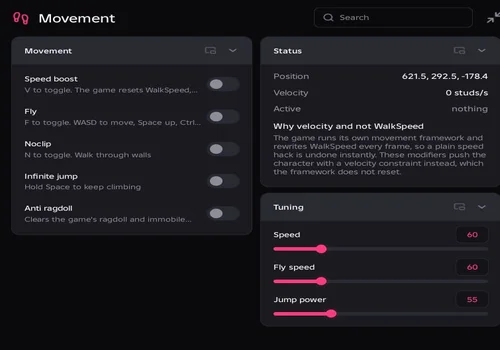
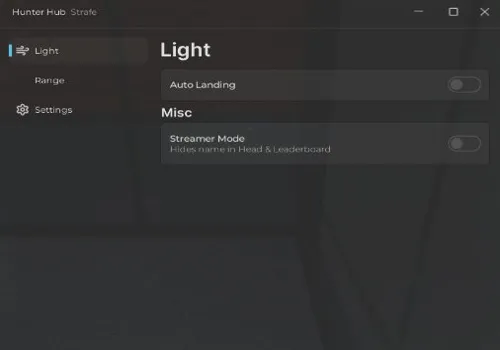
Robscript team’s Strafe Hub interface
Robscript team script preview

Robscript team

Developer
Robscript team
Updated
Updated
Working
NO KEY PC MOBILE OPEN SOURCE Full sUNC

Speed Boost, PC Fly, Noclip, teleports and visual controls worked in our test. Infinite Jump also worked, but made falling unusually slow.

  • Speed Boost
  • Fly: Keyboard Controls
  • Noclip
  • +20 more
Limitation: Use Speed Boost and Fly separately. Fly reads keyboard input, not a touch joystick. Hitbox Expander and Aimbot did not work.
Copies 46 GitHub
Details

Robscript team functions

  • Speed Boost
  • Fly: Keyboard Controls
  • Noclip
  • Infinite Jump: Slow-Fall Behavior
  • Jump Power for Infinite Jump
  • Speed and Fly Speed Settings
  • Anti Ragdoll: No Practical Benefit in Our Test
  • Position and Horizontal Velocity Status
  • Teleport to X, Y and Z Coordinates
  • Quick Moves: Up 25, Up 100 and Down 25
  • Fill Coordinate Inputs With Current Position
  • Save, Select and Delete Spots: Current Script Run Only
  • Teleport to Selected Player
  • Field of View Override
  • Fullbright
  • No Fog
  • Hide Viewmodel
  • Anti-AFK
  • PC Movement Keybinds
  • Floating Movement Controls
  • Saved Configs and Theme Settings
  • Hitbox Expander: Not Working
  • Aimbot With Hold-Key and FOV Settings: Not Working
Access
NO KEY
Tags
PC MOBILE OPEN SOURCE
Languages
English
Compatibility
Delta Arceus X Codex Other
Script code
loadstring(game:HttpGet("https://raw.githubusercontent.com/bobloscript/robscript/refs/heads/main/Strafe", true))()
How to Use Strafe Hub

Modifiers start off in a fresh setup. A saved autoload config can restore earlier switches. Check executor status if the loader will not run.

  1. Join Strafe [BETA] using the game link above and wait for your character to spawn.
  2. Copy the loader from the card, paste it into your executor and run it.
  3. Open Movement and choose either Speed Boost or Fly. Leave the other switch off. Start walking for Speed Boost to take effect.
  4. Use the PC keys below for Fly. On mobile, the floating Movement panel gives access to switches; it does not add touch-joystick flight controls.
  5. Adjust the chosen mode’s speed. To stop a modifier, turn its switch off. RightControl only hides or shows the full window on PC.
Using scripts can violate Roblox’s Terms of Use and may lead to account penalties.

PC Controls

KeyAction
V
Toggle Speed Boost
F
Toggle Fly
N
Toggle Noclip
WASD while flying
Move relative to the camera
Space / Left Ctrl while flying
Rise / descend
Space with Infinite Jump
Keep climbing; Jump Power controls the upward push
RightControl
Show or hide the hub; active modifiers keep running
Keep Speed Boost and Fly separate. If a hotkey clashes with a game control, use the hub’s switches instead.

Movement Controls and Known Issues

The game overwrites normal WalkSpeed changes. This hub applies movement velocity instead, so Speed Boost needs movement input.

Speed Boost and Fly Work Separately
Speed Boost follows the direction you are moving, so it does not move a stationary character. Fly uses keyboard controls and has its own speed slider. Enabling both together interfered with movement in our test; switch one off before using the other.
Noclip and Infinite Jump
Noclip let our character pass through walls. Infinite Jump let us keep climbing, but made falling slow and floaty. Turn it off to return to normal falling. With Infinite Jump enabled, Jump Power sets the upward push while Space is held. It is not a separate modifier for normal jumps.
Anti Ragdoll Has Little Use Here
Anti Ragdoll clears the Ragdolled and Immobile flags. We only encountered ragdoll while the character was dying, so it gave no practical benefit in our test. It does not prevent death.
Mobile Switches and Status
Movement shows position, horizontal velocity and active modifiers. The floating panel keeps switches nearby on a touch screen. Fly itself reads WASD, Space and Left Ctrl; this version has no flight input from the touch joystick.

Teleport Controls

Coordinates and Quick Moves
Enter X, Y and Z, then press Teleport to Coordinates. Copy My Position fills the three inputs with your current position. Up 25, Up 100 and Down 25 make quick vertical moves from where you are.
Named Spots Last for This Script Run
Enter a Spot Name and press Save Current Spot. Select the name in My Spots to teleport back. To remove it, enter the name in Spot Name and press Delete Spot. Points stay in memory for the current script run. Running the script again or starting a new session clears them; saving a UI config does not save this list.
Teleport to a Player
Select a player from the list to move to their character. The list refreshes when the number of players changes. Coordinate teleports, named spots and player teleports all worked in our test.

Visual Settings

Field of View
The FOV slider keeps applying your chosen camera field of view because the game changes it during play. Set it to 0 to stop the override.
Lighting, Fog and Viewmodel
Fullbright brightened the world and restored the previous lighting when switched off. No Fog and Hide Viewmodel also worked. Hide Viewmodel hides the first-person arms and gun.
Anti-AFK
Anti-AFK uses simulated input when the client becomes idle. It was among the working tools in our check.

Saved Setups and Respawning

Configs and Themes
Settings saves named UI setups in the StrafeHub folder and provides theme controls. Autoload can restore saved switches, so check that it has not enabled both Speed Boost and Fly.
After a Respawn
The source tries to reapply active movement tools to your new character after a respawn. If a tool stops responding, turn it off and on again.

Troubleshooting

ProblemWhat to Do
Speed Boost or Fly behaves incorrectly
Check that only one of the two is enabled.
Speed Boost is enabled but you stay still
Start walking. It follows your movement direction.
Fly is on, but the touch joystick does not move you
This version reads keyboard keys for Fly. The floating panel only gives access to switches.
Infinite Jump makes landing slow
Turn Infinite Jump off to stop the repeated jump behavior.
Jump Power does not change a normal jump
It is used by Infinite Jump while Space is held.
Saved spots disappear after restarting the script
The named-spot list exists only for the current script run.
A tool stops after your character dies
Wait for the respawn, then switch the tool off and on again.
A hotkey clashes with a game control
Use the hub’s switches or the floating Movement panel.
The window does not appear
Check the connection. The UI library downloads when the loader starts.
Aimbot or Hitbox Expander does nothing
Neither worked in our test. Changing their hold-key or FOV settings is not a confirmed fix.