Paint and Seek scripts are collected here for players who need simple tools for testing ESP, player visibility, and movement features in this Roblox hide-and-seek experience. The main script on this page is a keyless ESP players script that shows player boxes, names, distance, health bars, and tracers. There is also a separate fly script for movement testing, so the list is useful for users searching for Paint and Seek scripts with no key access, mobile support, and open source options.
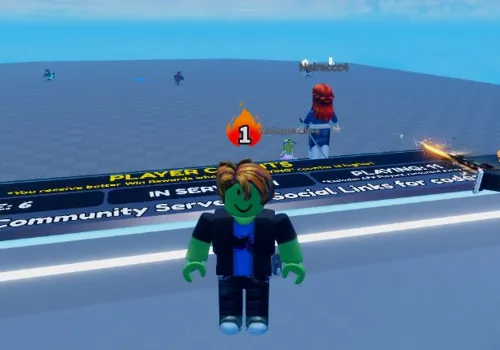
Paint and Seek is a Roblox game built around a paint-based hide-and-seek idea. The concept is inspired by MECCHA CHAMELEON, where players use color, positioning, and camouflage to blend into the map while seekers try to find them. In Paint and Seek, this creates a gameplay loop where hiding spots, player movement, team roles, and visual detection matter a lot. That is why ESP players can be one of the most requested script functions for this type of game.
Keyless Paint and Seek scripts
The scripts below are focused on practical Paint and Seek testing features. The ESP script is the main option for users who want to see player positions more clearly during rounds, while the fly script is a separate movement tool. Both entries are marked as NO KEY, which makes them easier to access than scripts that require external key systems or repeated verification steps.
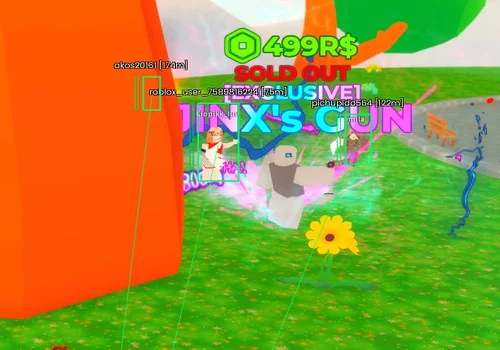
Easy to use ESP script (Open Source)
Open source Paint and Seek ESP script for showing players on screen. Includes ESP boxes, player names, distance, health bars, tracers, team-based colors, a GUI toggle button, and R key toggle support.
- ESP players, Boxes, Names, Distance, Health bars, Tracers
Details
Functions
- ESP players, Boxes, Names, Distance, Health bars, Tracers
Change history
- – Added to page!
Script code
local Players = game:GetService("Players")
local UserInputService = game:GetService("UserInputService")
local RunService = game:GetService("RunService")
local Workspace = game:GetService("Workspace")

local LocalPlayer = Players.LocalPlayer
local Camera = Workspace.CurrentCamera

local ESPEnabled = false
local ESPConnection = nil
local Drawings = {}

local Config = {
    MaxDistance = 1000,
    Key = Enum.KeyCode.R,
}

-- ================== MAIN GUI (Toggle Button) ==================
local ScreenGui = Instance.new("ScreenGui")
ScreenGui.Name = "SimpleESP"
ScreenGui.ResetOnSpawn = false
ScreenGui.Parent = LocalPlayer:WaitForChild("PlayerGui")

local ToggleButton = Instance.new("TextButton")
ToggleButton.Size = UDim2.new(0, 160, 0, 50)
ToggleButton.Position = UDim2.new(0, 20, 0, 20)  -- Top left corner
ToggleButton.BackgroundColor3 = Color3.fromRGB(30, 30, 30)
ToggleButton.TextColor3 = Color3.fromRGB(255, 255, 255)
ToggleButton.Font = Enum.Font.GothamBold
ToggleButton.TextSize = 18
ToggleButton.Text = "ESP: OFF"
ToggleButton.Parent = ScreenGui

local UICorner = Instance.new("UICorner")
UICorner.CornerRadius = UDim.new(0, 12)
UICorner.Parent = ToggleButton

local UIStroke = Instance.new("UIStroke")
UIStroke.Thickness = 2
UIStroke.Color = Color3.fromRGB(80, 80, 80)
UIStroke.Parent = ToggleButton
-- ============================================================

local function GetTeamColor(player)
    if player.Team == LocalPlayer.Team then
        return Color3.fromRGB(0, 255, 100)   -- Green
    else
        return Color3.fromRGB(255, 60, 60)   -- Red
    end
end

local function CreateESP(player)
    if player == LocalPlayer then return end

    local color = GetTeamColor(player)

    Drawings[player] = {
        box = Drawing.new("Square"),
        name = Drawing.new("Text"),
        healthBar = Drawing.new("Square"),
        healthFill = Drawing.new("Square"),
        tracer = Drawing.new("Line")
    }

    local d = Drawings[player]

    d.box.Thickness = 2
    d.box.Filled = false
    d.box.Color = color
    d.box.Transparency = 1

    d.name.Size = 15
    d.name.Center = true
    d.name.Outline = true
    d.name.Color = Color3.fromRGB(255, 255, 255)

    d.healthBar.Color = Color3.fromRGB(0, 0, 0)
    d.healthBar.Transparency = 0.6

    d.healthFill.Color = Color3.fromRGB(0, 255, 80)

    d.tracer.Thickness = 1.5
    d.tracer.Color = color
    d.tracer.Transparency = 0.75
end

local function UpdateESP()
    for player, d in pairs(Drawings) do
        if not player or not player.Character then
            d.box.Visible = false
            d.name.Visible = false
            d.healthBar.Visible = false
            d.healthFill.Visible = false
            d.tracer.Visible = false
            continue
        end

        local char = player.Character
        local root = char:FindFirstChild("HumanoidRootPart")
        local head = char:FindFirstChild("Head")
        local hum = char:FindFirstChildOfClass("Humanoid")

        if not root or not head or not hum or hum.Health <= 0 then
            d.box.Visible = false
            d.name.Visible = false
            d.healthBar.Visible = false
            d.healthFill.Visible = false
            d.tracer.Visible = false
            continue
        end

        local distance = (Camera.CFrame.Position - root.Position).Magnitude
        if distance > Config.MaxDistance then
            d.box.Visible = false
            d.name.Visible = false
            d.healthBar.Visible = false
            d.healthFill.Visible = false
            d.tracer.Visible = false
            continue
        end

        local top, onScreen = Camera:WorldToViewportPoint(head.Position + Vector3.new(0, 3, 0))
        local bottom = Camera:WorldToViewportPoint(root.Position - Vector3.new(0, 3, 0))

        if not onScreen then
            d.box.Visible = false
            d.name.Visible = false
            d.healthBar.Visible = false
            d.healthFill.Visible = false
            d.tracer.Visible = false
            continue
        end

        local height = math.abs(top.Y - bottom.Y)
        local width = height / 2.1

        -- Box
        d.box.Size = Vector2.new(width, height)
        d.box.Position = Vector2.new(top.X - width/2, top.Y)
        d.box.Visible = true

        -- Name + Distance
        d.name.Text = string.format("%s [%dm]", player.Name, math.floor(distance))
        d.name.Position = Vector2.new(top.X, top.Y - 22)
        d.name.Visible = true

        -- Health Bar
        local hpRatio = hum.Health / hum.MaxHealth
        d.healthBar.Size = Vector2.new(5, height)
        d.healthBar.Position = Vector2.new(top.X - width/2 - 10, top.Y)
        d.healthBar.Visible = true

        d.healthFill.Size = Vector2.new(5, height * hpRatio)
        d.healthFill.Position = Vector2.new(top.X - width/2 - 10, top.Y + (height * (1 - hpRatio)))
        d.healthFill.Visible = true

        -- Tracer
        d.tracer.From = Vector2.new(Camera.ViewportSize.X / 2, Camera.ViewportSize.Y)
        d.tracer.To = Vector2.new(top.X, top.Y + height/2)
        d.tracer.Visible = true
    end
end

local function ToggleESP()
    ESPEnabled = not ESPEnabled

    if ESPEnabled then
        ToggleButton.Text = "ESP: ON"
        ToggleButton.BackgroundColor3 = Color3.fromRGB(0, 170, 0)

        -- Create ESP for existing players
        for _, player in ipairs(Players:GetPlayers()) do
            CreateESP(player)
        end

        ESPConnection = RunService.RenderStepped:Connect(UpdateESP)
    else
        ToggleButton.Text = "ESP: OFF"
        ToggleButton.BackgroundColor3 = Color3.fromRGB(170, 0, 0)

        if ESPConnection then
            ESPConnection:Disconnect()
            ESPConnection = nil
        end

        for _, d in pairs(Drawings) do
            for _, drawing in pairs(d) do
                drawing:Remove()
            end
        end
        Drawings = {}
    end
end

-- ================== INPUTS ==================
ToggleButton.MouseButton1Click:Connect(ToggleESP)

UserInputService.InputBegan:Connect(function(input, gp)
    if gp then return end
    if input.KeyCode == Config.Key then
        ToggleESP()
    end
end)

-- Auto create ESP when new player joins
Players.PlayerAdded:Connect(function(player)
    if ESPEnabled then
        CreateESP(player)
    end
end)

-- Cleanup on death
LocalPlayer.CharacterAdded:Connect(function()
    task.wait(1)
    if ESPEnabled then
        for _, d in pairs(Drawings) do
            for _, drawing in pairs(d) do drawing:Remove() end
        end
        Drawings = {}
    end
end)

print("Press R or click the button to toggle")The ESP script is especially relevant for Paint and Seek because the game depends on spotting hidden players and reading the map quickly. It can show where other players are, how far away they are, and whether they are still active. The built-in toggle button and R keybind also make it easier to turn ESP on or off during testing.
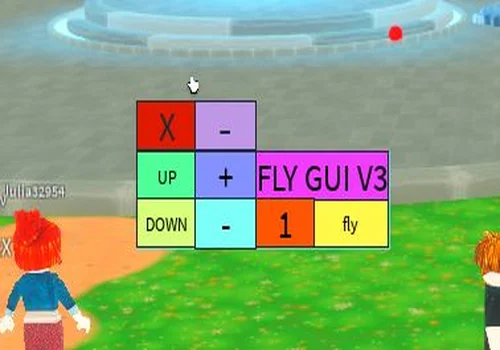
Fly script for Paint and Seek
Simple fly GUI script for Paint and Seek movement testing. Useful for checking map areas, movement behavior, and general script compatibility with supported executors.
- Fly, Movement tool
Details
Functions
- Fly, Movement tool
Change history
- – Added to page!
Script code
loadstring(game:HttpGet("https://raw.githubusercontent.com/XNEOFF/FlyGuiV3/main/FlyGuiV3.txt"))()
The fly script is included as an extra utility option. It is not the same type of feature as ESP, but it may help users test movement, map layout, and executor behavior. For a page focused on Paint and Seek scripts, this gives visitors a second keyless option while keeping the main focus on ESP players.
Conclusion
This Paint and Seek scripts page is mainly built around a keyless ESP players script, with a fly script included as an additional utility. The ESP option is the most relevant feature for a paint-based hide-and-seek game because it focuses on visibility, player tracking, distance, and health information. Before using any script, check the source, review compatibility, and remember that Roblox or game updates can make scripts unstable at any time.